Macros & tracking
How to check a food photo’s calorie and macro estimate
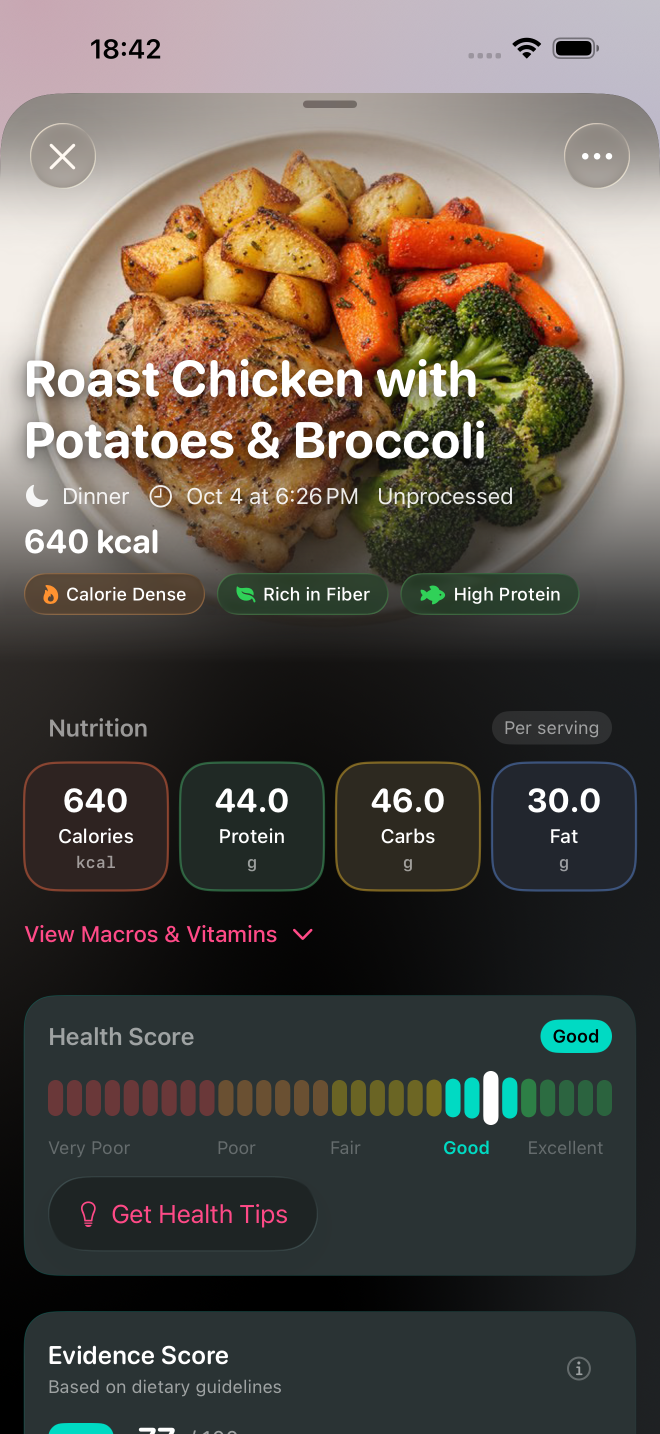
A food photo gives you a starting estimate of calories and macros. Before logging it, check three things: which foods were recognised, what the camera could not see, and how much you actually ate. Correct the details you know rather than treating the first total as a measurement.
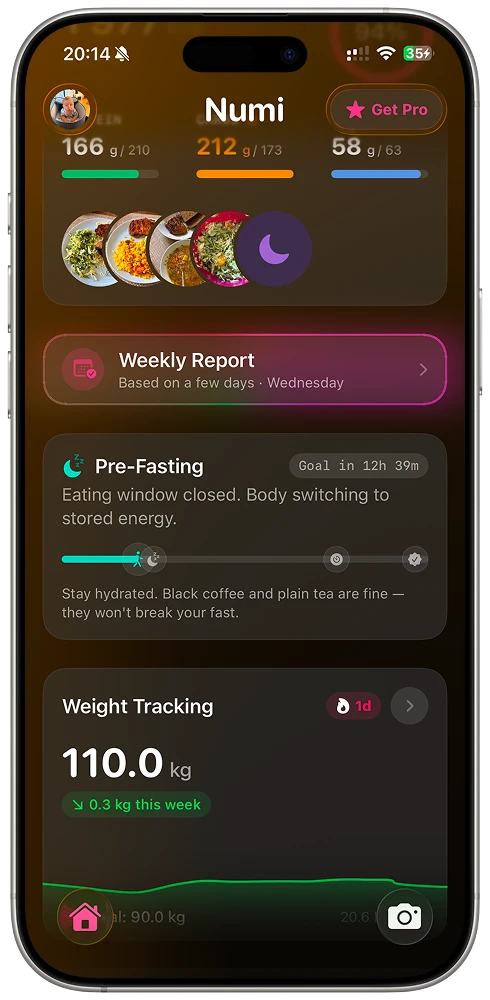
This guide shows how to review an estimate in Numi. I build the app, and these are the checks I want people to apply to its results.
1. Check the foods before the total
Compare the identified items with the plate. A bowl might contain rice, chicken, vegetables and sauce. Check that the result describes those foods, rather than a similar dish with different ingredients.
For packaged food, scan its barcode and compare the returned entry with the package. The barcode identifies a product; you still need to check the amount you ate. When a photo does not describe the meal well, use a short text description with the ingredients you know.
2. Think about what the photo cannot show
Cooking oil, butter, dressing and ingredients inside a dish may not be visible. The model can infer them, but that does not mean it knows the recipe. If you know a meal was cooked with oil or served with a dressing, include that information when describing it.
At a restaurant, use published nutrition information when it is available. Otherwise, treat a photo or description as an estimate and review the dish and portion. Moving a portion slider cannot reveal an ingredient hidden from the camera.
3. Match the portion to what you ate
The amount served and the amount eaten can differ. If the entry shows 200 grams of rice and you know you ate 150 grams, adjust the available portion in grams. Check whether an amount describes the whole dish, one serving or one component.
Numi supports portion editing for foods with the nutrition data needed to recalculate them. It is not available for every entry. Saving a supported portion change updates the meal values and the day's totals.
If you use a food scale or a package label, use that information to review the estimate. For a reference food lookup, USDA FoodData Central provides food composition data; select an entry that matches the food and its preparation.
What a 30% portion error actually does
Here is a simplified arithmetic example, using fictional rounded values. Assume every component is overestimated by the same 30%. This assumption makes the effect easy to see; real mixed plates can have different errors for each food.
| Value | Reference | 30% too high |
|---|---|---|
| Calories | 450 kcal | 585 kcal |
| Protein | 40 g | 52 g |
| Carbohydrates | 50 g | 65 g |
| Fat | 10 g | 13 g |
Each value is multiplied by 1.3, so the proportions stay the same while the grams and calories rise. If the estimate were 30% low, you would multiply by 0.7 instead. A similar-looking macro split does not confirm that the quantities are right.
A missed ingredient behaves differently: adding oil changes fat more than protein or carbohydrate. That is why checking the foods and checking their amounts are separate steps. Neither grams nor percentages can remove an error in the underlying meal entry.
Log the reviewed meal
Once the result reflects what you know about the meal, log it and review the daily totals. If you connected Health, our Apple Health guide explains which permissions let the nutrition values appear there.