Apple Health · Food tracking
How to track calories and macros in Apple Health
To add nutrition from a food photo to Apple Health, connect Numi, allow it to write the nutrition categories you want, then scan, review and log your meal. Numi estimates calories, protein, carbohydrates and fat from the photo. When you save the meal, permitted nutrition values can appear in Health alongside your other data.
The useful habit is scan → review → log → check Health. Reviewing the result matters because a photograph cannot show every ingredient or measure a portion precisely.
1. Connect Numi and choose your permissions
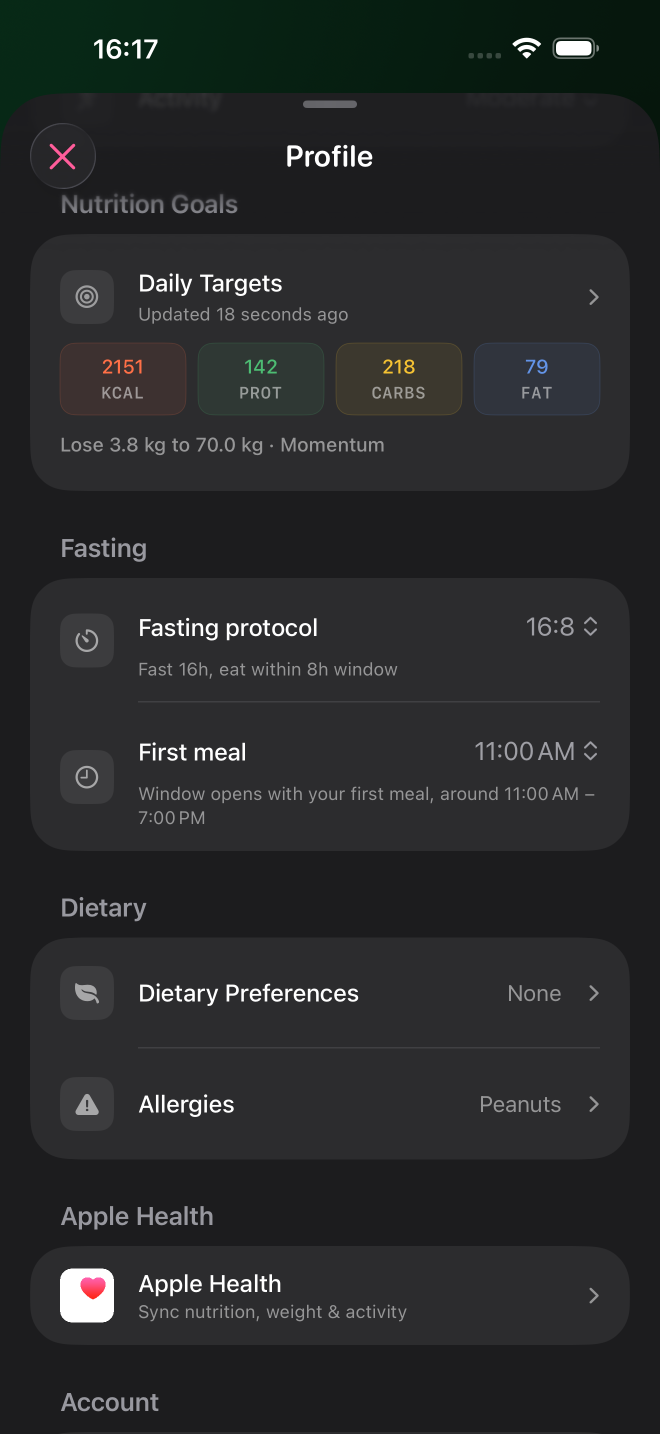
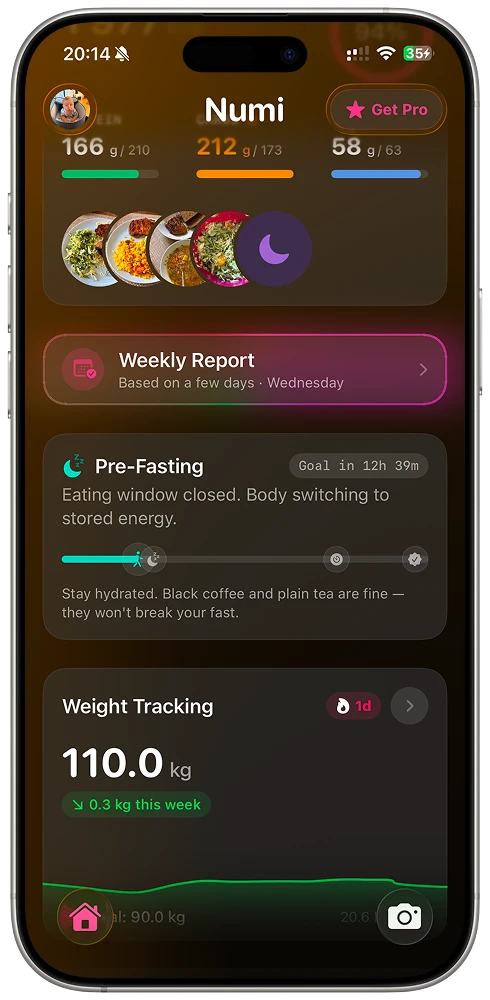
In Numi, open your profile from the Home screen and tap Apple Health. If you are setting up the app for the first time, you may also see Connect Apple Health. Follow the system permission screen and choose the categories you want to share.
For meal export, enable permission to write Dietary Energy, plus protein, carbohydrates, total fat and any other nutrients you want in Health. Dietary Energy is needed for Numi's meal-sync connection. Water and weight have separate permissions, so enabling nutrition does not enable them automatically.
You can change your choices later in the Health app: open Summary, tap your picture or initials, then find Apps under Privacy and choose Numi. Review the read and write controls there. Apple describes this in its guide to Health permissions.
Health access is optional. You can skip the connection and still log meals in Numi. A category you have not allowed will not be shared with Health.
2. Scan a meal, then review the estimate
Open Numi's food camera and photograph the plate with the food clearly visible. Check the recognized foods and estimated portions before saving. For a mixed plate, compare the separate items with what you actually ate.
Adjust an available portion in grams when the estimate needs correcting. Portion editing requires nutrition data and is not available for every entry. A tablespoon of oil, a dressing or an ingredient hidden inside a dish can change its nutrition without being obvious in the photograph. Better lighting helps recognition, but it does not make hidden ingredients visible.
For packaged food, barcode scanning may be a more useful starting point. A short meal description is another option when a photo is impractical. These are alternative ways to create a meal estimate in Numi.
For more on reviewing estimates, read Check and correct a food photo estimate.
When the result reflects your meal, tap Log Meal. Check the meal date if you are logging something you ate earlier. A scan result you only viewed is different from a meal you saved: logging is the step that adds the entry to your nutrition history and starts its Health export.
3. Understand which data goes where
- Meals: Numi → Health. Logged meals can write dietary energy, protein, carbohydrates and total fat. Additional available values include fiber, sugar, saturated fat, cholesterol, sodium, potassium, vitamin C, calcium and iron. Each category needs permission; a missing estimate will not produce a record.
- Water: Numi → Health. Water logged in Numi can be added to Health when Water write permission is enabled.
- Weight: Numi → Health. Weight entries logged in Numi can be written to Health when Weight write permission is enabled.
- Activity: Health → Numi. Numi can read permitted active-energy and step data. These are separate from the dietary calories recorded from your meals.
This workflow brings your nutrition records into Health. Continue using Numi to review the photographed meal and its portions.
If a meal or nutrient is missing from Health
- Check that the meal was logged. Find it in Numi's history first. If it is still only an analysis result, save it.
- Check the individual permissions. Open Numi's entry in Health and confirm Dietary Energy and the missing nutrient are enabled for writing. A connection label in Numi does not confirm every switch.
- Check the date and category. Look at the day you assigned to the meal and the relevant nutrition category. Dietary energy describes food intake; active energy describes activity.
- Inspect the source. In the Health category, look for its individual records and data sources. Apple's Health data management guide explains how to find contributing apps.
- Test after changing permissions. Return to Numi and check a newly logged meal. Do not assume that turning access on will fill in all earlier meals.
If activity information is empty, check its read permission too. For privacy, Health does not tell an app whether read access was denied or no matching data exists. Apple explains this behavior in its Health authorization documentation.